Showing posts with label Setup. Show all posts

Tuesday, November 13, 2018

Oracle Applications Java Color Scheme

Have you ever experienced an accidental mistake when you thought you were testing something in Test instances (DEV, UAT, etc.), but in fact, it was in Production? Then, you gasped in fear, rushed to cancel the test you did in Production, and/or asked  the EBS technical/functional guys to come up with an urgent 'datafix' to reverse your mistake (test entry) in Production.

Well, personally I have not. But in case you ever did or feel that it may happen to you in future, there is an easy remedy to avoid this. Hence, one of the good reasons why Oracle Applications offer you different color schemes for different Oracle Application instances. Note that, this only applies to Oracle (Java) form.

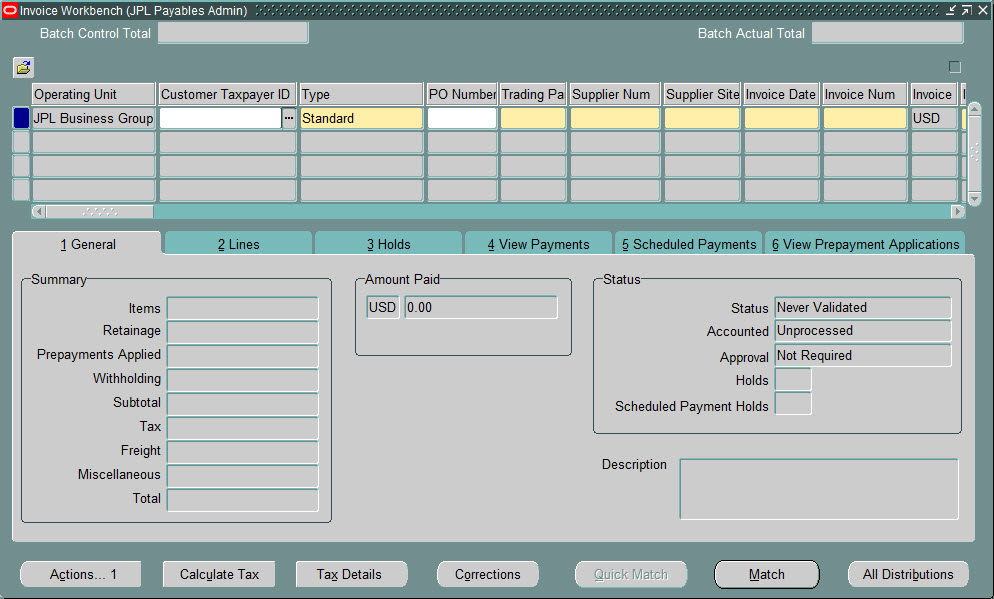
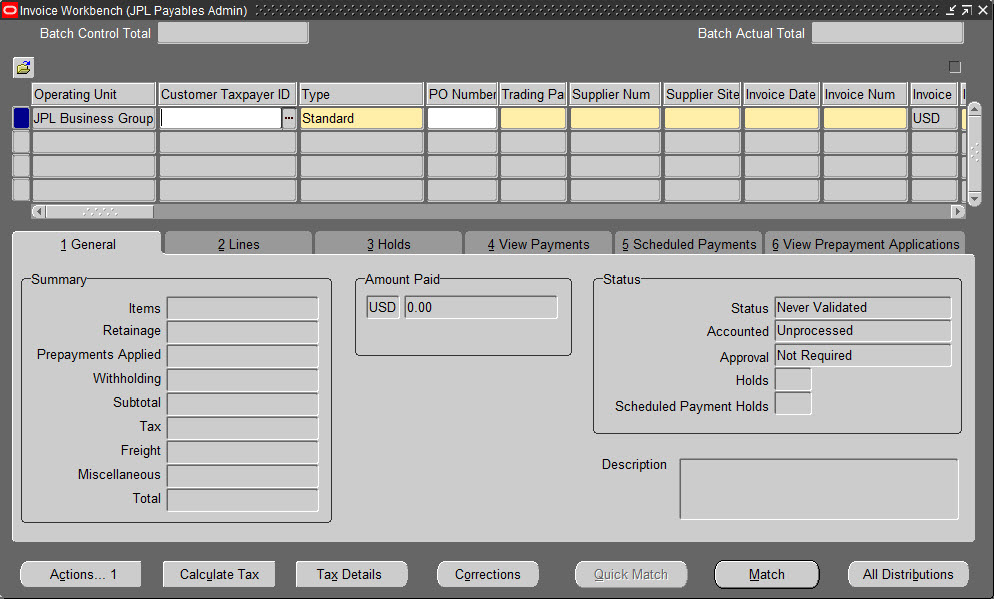
I use the following color schemes to differentiate different instances from each other.
  1. TEAL
    • Use this color for Development type of instances
    • Green color suggests that you are free to make any changes in this instance
  2. RED
    • Use this color for Test type of instances
    • Red color suggests that you should proceed carefully in this instance
  3. SWAN
    • Defaulted color used primarily in Production
    • Swan color suggests that your entries are permanent 
    • This color theme profile typically gets copied over to other instances after the Clone
Oracle provides many other color options to choose from. Apply as you see fit or makes sense for your applications.

  1. Blue
  2. Khaki
  3. Olive
  4. Purple
  5. Red
  6. Swan
  7. Teal
  8. Titanium

Navigation:

Any Responsibility > Edit > Preferences > Profiles

Press 'F11' in the Profile Name field. Type 'Java Color Scheme'. 
Press Ctrl+F11. From "User Value" drop down list, choose one of the values.

 

Blue


Khaki
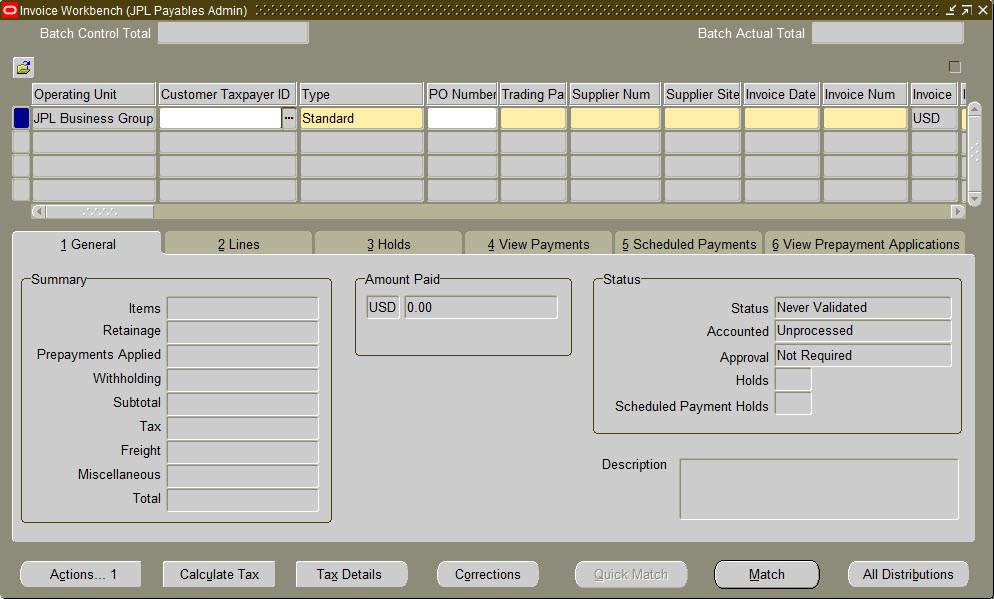

Olive
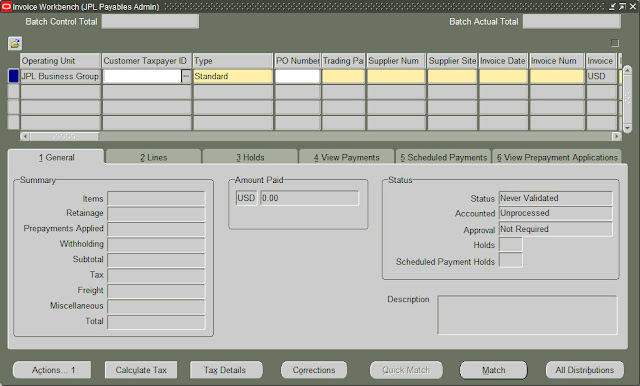

Purple
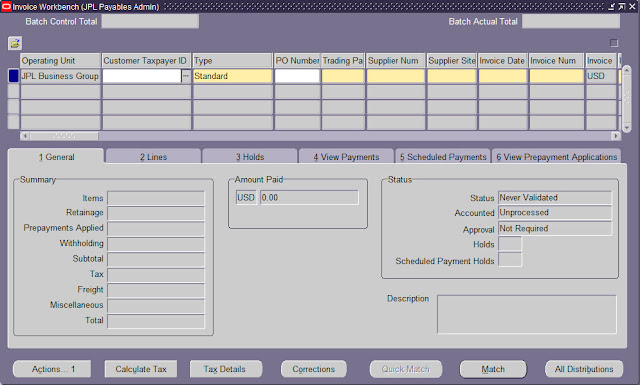

Red
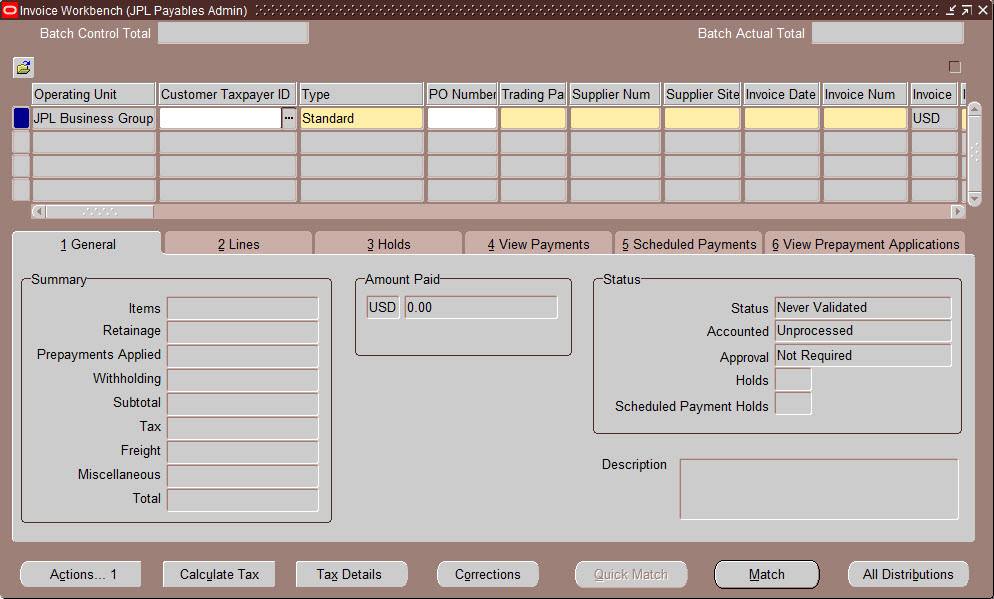

Swan
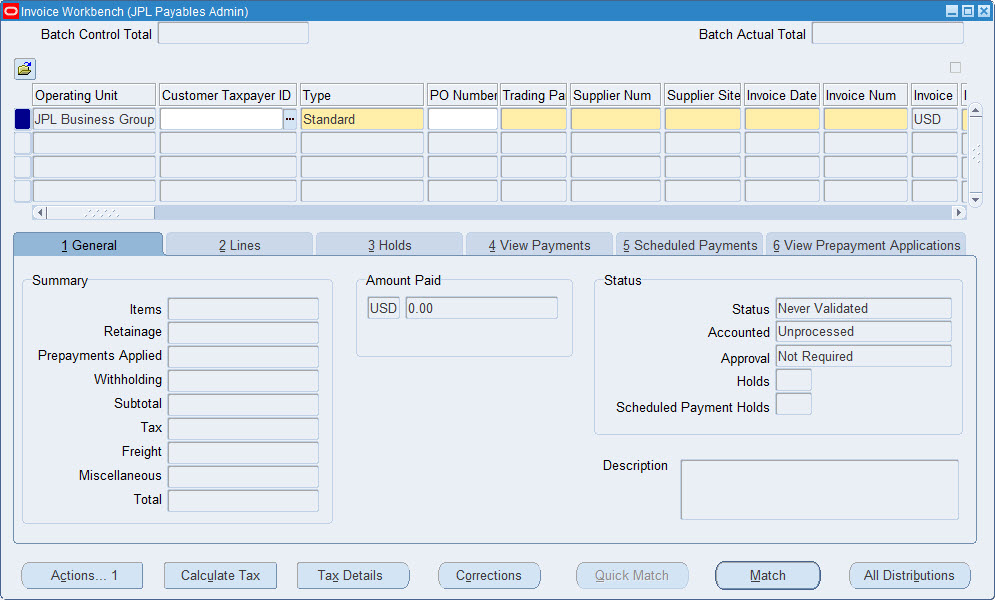

Teal

Titanium


Friday, April 11, 2014

PL/SQL Developer: Can't Connect to Database Error

Right after you install PL/SQL Developer, you realize that you cannot connect to your databases. You get the following message:

ORA-12154: TNS:could not resolve the connect identifier specified


For a moment, you may think, it is something to do with TNSNAMES.ora file or Pinging issue. It is, however, purely a PL/SQL Developer issue. When I downloaded SQL Developer from Oracle and installed it, I could connect to all my databases fine.

The solution is actually pretty simple. There are probably multiple ORACLE_HOME defined (such as for reports and forms, workflow, discoverer, etc.) in your machine, and PL/SQL Developer is probably not finding the correct one to choose from. All you have to do is to choose the correct version for your PL/SQL Developer. To do so, follow the below instruction.
  1. Make sure you are connected to Network/VPN.
  2. Open PL/SQL Developer.
  3. Click on Tools -> Preferences. Select the very first option: Connection.
  4. From Oracle Home drop down list, select the correct version. For example, OH159997875 works for my machine.
  5. Restart PL/SQL Developer.
  6. Cross your fingers and retry to connect to your databases.
  7. If it works, say "Buiya". If it doesn't, scream "F***", and Google search.


Saturday, June 15, 2013

Web-ADI Template Settings for Microsoft Excel


Often times, WebADI can be very confusing to work with. There are just too many issues if it is not properly set up. Sometimes you may encounter VBProject Runtime Error when trying to open Web-ADI template file, or sometimes the Excel spreadsheet just hangs up, or can't be opened.

There are few steps you will have to take before WebADI can be properly used:

  • Microsoft Office Version
  • Microsoft Excel Settings
  • Internet Explorer Settings

Follow the steps below given in the screenshots and apply the settings exactly as they are depicted. The screenshots are from Excel 2010, however the settings should also work for 2000, 2003, 2007 versions.


A)  Check the Microsoft Office Version

Make sure you are using 32-bit version of Microsoft Office. Click on Excel --> File --> Help. If you are running 64-bit version, you may want to uninstall 64-bit and re-install the 32-bit version of Microsoft Office.


B)  Open Microsoft Excel --> File --> Options --> Trust Center --> Trust Center Settings


B-1)  Trusted Documents:

Make sure to check "Allow documents on a network to be trusted".


B-2)  Add-Ins:

Make sure to uncheck all the options.


B-3)  ActiveX Settings:

Check only "Enable all controls without restrictions and without prompting". All other options should be unchecked.


B-4)  Macro Settings:

Check "Enable all macros" and "Trust access to the VBA project object model" options.


B-5)  Protected View:

Check only "Enable Protected View for Outlook attachments" and "Enable Data Execution Prevention mode" options. All other options should be unchecked.


In case the WebADI still does not work, then keep all the options unchecked, and retry.


B-6)  Message Bar:

Check "Show the Message Bar in all applications when achieve content, such as ActiveX controls and macros, has been blocked".


B-7)  External Content:

Check the "Enable all Data Connections" and "Enable automatic update for all Workbook Links" options only.


C)  Internet Explorer Settings:

Open Internet Explorer --> Tools --> Internet Options --> Security Tab --> Custom Level.


C-1)  Downloads

Scroll down to Downloads section, and make sure File Download is Enabled.


C-2)  Miscellaneous: 

Scroll down to Miscellaneous section, and make sure to match the following setting.


C-3)  Scripting: 

Scroll down to Scripting section, and make sure to match the following setting. Then press OK.


Now log out from your Oracle Applications and re-log back in. Retry the Web-ADI upload.

References:
Web ADI Errors & Solutions
R12 Web ADI: Make it work with MS Office 2010
Troubleshooting user issues with Oracle Web ADI